Computer Science · Ch 5 — Getting Started with Python
Working with Python
Working with Python
To write and execute a Python program, one thing is essential: a Python interpreter. There are two ways to get one —
- install the Python interpreter on our own computer (the latest version of Python 3 is available on the official website, https://www.python.org/), or
- use any online Python interpreter through a web browser, with nothing installed locally.
The Python shell
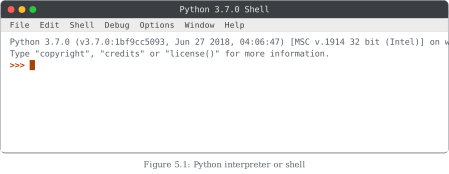
The interpreter is also called the Python shell. When it starts (Figure 5.1 shows a sample screen), it displays some version information and then presents a prompt:
>>>
The three-greater-than symbol >>> is the Python prompt. It is the interpreter's way of signalling that it is ready to take instructions. Whatever command or statement we type at this prompt is handed to the Python interpreter for execution:
>>> print("Ready to work")
Ready to work
>>> 7 + 3
10
``` …
Drawn by us to help you understand the concept clearly, and verified to make sure it's accurate. For exams, practice from your textbook's own diagram.
This figure shows what the Python interpreter — the Python shell — looks like the moment it is opened, using the IDLE "Python 3.7.0 Shell" window on Windows as the sample. Across the top runs IDLE's menu bar: File, Edit, Shell, Debug, Options, Window and Help.
Inside the window, the shell first prints its start-up banner. The banner states the exact interpreter version and build — "Python 3.7.0 (v3.7.0:1bf9cc5093, Jun 27 2018, 04:06:47) [MSC v.1914 32 bit (Intel)] on win32" — followed by the standard invitation to type "copyright", "credits" or "license()" for more information. This banner is the shell's way of confirming which Python it is running and on what platform. …