Informatics Practices · Ch 5 — Internet and Web
Browser Settings
Browser Settings
Every web browser has a set of built-in settings that control how it behaves. These settings cover areas like privacy, which search engine to use, how downloads are handled, autofill and autocomplete features, the browser's theme, and much more. All browsers let you change or customise these settings easily. The textbook uses Mozilla Firefox, an open-source browser available free of cost, to show how this is done.
To open the settings in Firefox, click the Menu button (three horizontal lines) at the top-right corner of the browser window. From the dropdown, select Options. This opens the Preferences and Options page, which has several panels on the left side: General, Home, Search, Privacy and Security, and Sync.
General Panel — This panel contains options for:
- Setting the default browser
- Language and appearance of text
- Downloading files and applications
- Firefox update settings
- Browsing and network settings
Home Panel — This panel lets you set the browser's home page, as well as window and tab settings.
Search Panel — This panel contains options to edit the settings of the search engine used by Firefox.
Privacy and Security Panel — This panel contains options to secure the browser and data. It includes:
- Enhanced tracking protection
- Forms and passwords
- History and address bar
- Cookies and site data
- Permission to view pop-up windows and install add-ons …
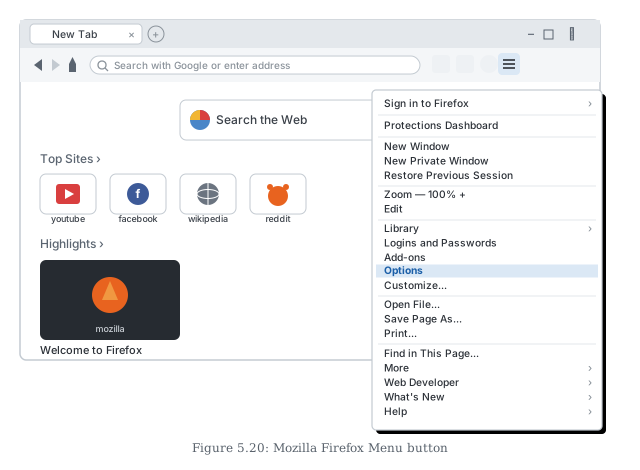
Drawn by us to help you understand the concept clearly, and verified to make sure it's accurate. For exams, practice from your textbook's own diagram.
This screenshot begins the walkthrough of browser settings: it locates the Menu button at the top-right corner of the Firefox window and shows the drop-down that clicking it opens. The menu is the gateway to everything the browser can be told to do — new and private windows, zoom, the Library, logins and passwords, add-ons, printing and more — but the entry that matters for this sub-section is Options, which opens the browser's settings. The figure teaches t …
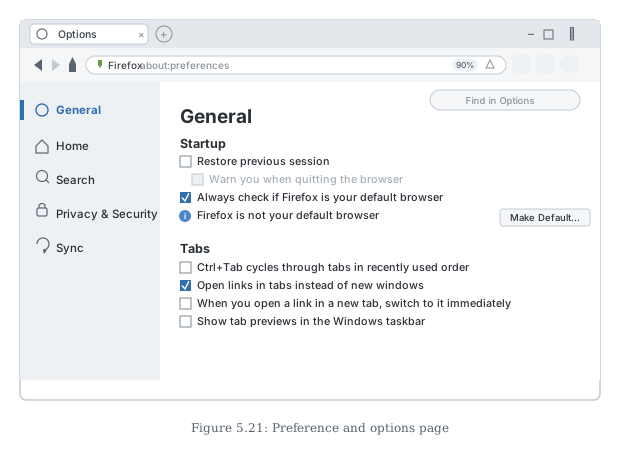
Drawn by us to help you understand the concept clearly, and verified to make sure it's accurate. For exams, practice from your textbook's own diagram.
Having opened Options from the menu, this screenshot shows what the settings page itself looks like: it opens as a page in a browser tab (about:preferences) rather than a separate window. The left sidebar organises everything into five panels — General, Home, Search, Privacy & Security and Sync — and the selected General panel demonstrates typical choices: startup behaviour such as restoring the previous session, whether Firefox should be the default browser, and how links open in tabs. A 'Find …