Computer Science · Ch 5 — Getting Started with Python
Execution Modes
Execution Modes
The Python interpreter can be used in two ways:
a) Interactive mode — executes an individual statement instantaneously, the moment it is typed.
b) Script mode — lets us write many instructions together in a file, called a Python source code file, and execute the whole file.
(A) Interactive mode
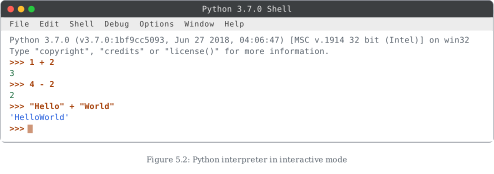
In interactive mode we simply type a Python statement directly at the >>> prompt. As soon as the Enter key is pressed, the interpreter executes that statement and displays its result immediately (Figure 5.2 shows this in action):
>>> 8 + 5
13
>>> "Concept" + "First"
'ConceptFirst'
Strength: interactive mode is ideal for testing a single line of code and seeing the result instantly.
Limitation: nothing typed at the prompt is saved. To run the same statements again later, they must be retyped from scratch — interactive work cannot be stored for future use.
(B) Script mode
In script mode, we write a complete Python program in a file, save it, and then ask the interpreter to execute the file. Two conventions matter here:
- Python scripts are saved with the file-name extension
.py. - By default, scripts are saved in the Python installation folder.
A script is just a sequence of statements. For example, a two-line program saved as a .py file:
# a first script: two print statements
print("Hello from a script")
print("Both lines run together")
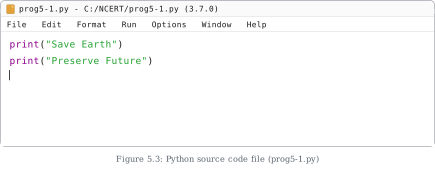
(The textbook's Program 5-1 demonstrates exactly this pattern — a program consisting of print statements, saved as prog5-1.py; Figure 5.3 shows such a source file open in the IDLE editor.)
Executing a script
There are two ways to execute a saved script:
a) From the prompt: type the file name along with its path at the prompt — for a file named prog5-1.py, we type prog5-1.py. Alternatively, open the program directly from IDLE (as in Figure 5.3).
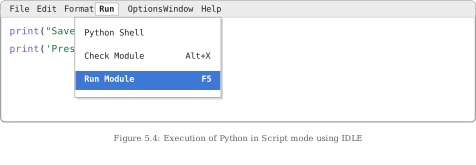
b) From the IDLE menu: while working in script mode, after saving the file, click [Run] -> [Run Module] from the menu (Figure 5.4 shows this menu selection). …
Drawn by us to help you understand the concept clearly, and verified to make sure it's accurate. For exams, practice from your NCERT textbook's own diagram.
This figure demonstrates the Python interpreter working in interactive mode — the mode where each statement typed at the >>> prompt is executed instantaneously. The window is the same Python 3.7.0 Shell seen in Figure 5.1, with the standard start-up banner at the top.
After the banner, three statements have been typed, and each shows its result on the very next line:
>>> 1 + 2produces3— an arithmetic expression evaluated on the spot.>>> 4 - 2produces2— a second arithmetic statement, again answered immediately.>>> "Hello" + "World"produces'HelloWorld'— showing that the+operator applied to two strings joins (concatenates) them rather than adding numbers.
A fresh >>> prompt follows the third result, signalling that the interpreter has finished and is ready for the next instruction. …
Drawn by us to help you understand the concept clearly, and verified to make sure it's accurate. For exams, practice from your NCERT textbook's own diagram.
This figure shows a Python source code file — the artefact at the heart of script mode — open in IDLE's editor window. The title bar reads "prog5-1.py - C:/NCERT/prog5-1.py (3.7.0)", which conveys three facts at once: the file's name is prog5-1.py (note the mandatory .py extension for Python scripts), it is saved at the path C:/NCERT/, and it is associated with Python 3.7.0.
The editor's menu bar — File, Edit, Format, Run, Options, Window, Help — differs from the shell window's menu bar: this is the editing environment, and its Run menu is what will later execute the script (as Figure 5.4 shows).
The file itself contains just two lines of code:
print("Save Earth")
print("Preserve Future")
``` …
Drawn by us to help you understand the concept clearly, and verified to make sure it's accurate. For exams, practice from your NCERT textbook's own diagram.
This figure captures the exact moment a Python script is executed from IDLE in script mode. The IDLE editor window holds the file prog5-1.py — its two print statements are partly visible behind an opened menu — and the user has clicked the Run menu in the menu bar.
The opened Run menu lists three entries:
- Python Shell — switches to the shell window;
- Check Module (shortcut Alt+X) — checks the file for errors without running it;
- Run Module (shortcut F5) — executes the saved file; this entry is highlighted, about to be selected. …
Drawn by us to help you understand the concept clearly, and verified to make sure it's accurate. For exams, practice from your NCERT textbook's own diagram.
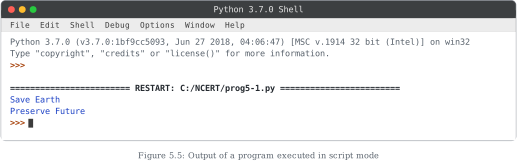
This figure completes the script-mode story begun in Figures 5.3 and 5.4: it shows where a script's output actually appears — on the Python shell. The window is the Python 3.7.0 Shell, with its usual start-up banner at the top.
Below the banner runs a line of equals signs framing the word RESTART together with the script's path:
======================== RESTART: C:/NCERT/prog5-1.py ========================
This RESTART line is the shell's marker that a script file has just been handed to the interpreter for execution — it names exactly which file (C:/NCERT/prog5-1.py) is being run.
Immediately after come the two lines the program prints:
Save Earth
Preserve Future
``` …