Computer Science · Ch 12 — Security Aspects
Keyloggers
Keyloggers
A keylogger is a tool designed to record every key a user presses on a keyboard. It can exist as either malware or a physical hardware device. Its core purpose is surveillance: it quietly captures keystrokes, builds logs of daily keyboard usage, and may transmit those logs to an external party. Because of this, highly sensitive information — passwords, email content, private conversations — can be leaked without the user ever knowing. The threat is especially serious when you type credentials on a computer you do not own or trust.
One practical defence against keylogger-based password theft is to use a virtual keyboard when signing into online accounts from an unknown machine. Instead of typing your password with physical keys, you click the characters on a software-rendered keyboard, so no keystroke is ever sent to the system's keyboard buffer where a keylogger would catch it.
Online Virtual Keyboard vs On-Screen Keyboard
The terms "on-screen keyboard" and "virtual keyboard" are often used interchangeably, since both refer to any software-based keyboard. Visually, they may look identical. The real difference lies in the layout or ordering of the keys.
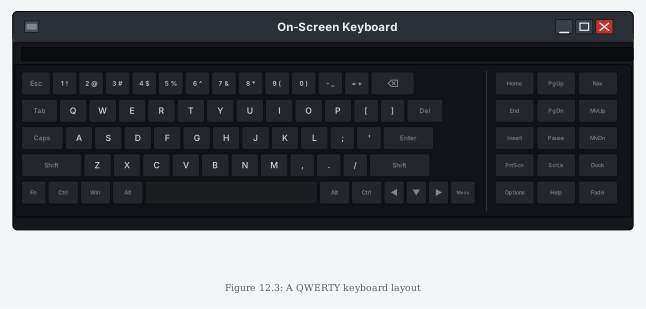
- On-screen keyboard — This is the keyboard utility built into an operating system. It uses a fixed QWERTY layout, meaning the keys always appear in the same positions. A sophisticated keylogger can exploit this predictability: since the software knows exactly where each letter sits on screen, it can correlate mouse clicks with the corresponding key and reconstruct what was typed.
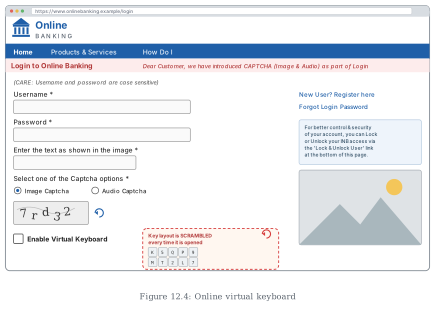
- Online virtual keyboard — This is a keyboard provided by a website, typically for login pages. Its key feature is that it randomises the key layout every time it is used. The letters are shuffled into a different arrangement on each visit. Because the positions change, a keylogger cannot know which key corresponds to which click, making it very difficult — if not impossible — for the malware to record the actual characters pressed.
The randomisation is the whole point. A fixed layout can be mapped by malware; a shuffled layout breaks that mapping.
Hardware Keyloggers …
Online Virtual Keyboard Vs On-Screen Keyboard
Both keyboards are security tools, but they work in fundamentally different ways. An online virtual keyboard is a software-based keyboard that appears on your screen and lets you click keys with your mouse, so your keystrokes never travel through the physical keyboard driver — this protects you from keyloggers that record your actual typing. An on-screen keyboard, on the other hand, is a built-in Windows utility (accessible via osk.exe) that displays a keyboard on the desktop for users who cannot use a physical keyboard, but it does not offer the same anti-keylogging protection because it still sends standard keyboard input to the system. The key differenc …
Drawn by us to help you understand the concept clearly, and verified to make sure it's accurate. For exams, practice from your textbook's own diagram.
The figure shows a software window titled On-Screen Keyboard, with the usual minimize, restore, and close buttons in its title bar. This is a virtual keyboard — a program that draws keys on the screen instead of using physical hardware. Below the title bar sits a complete QWERTY grid: the top row holds the number keys, then come the standard QWERTY, ASDF, and ZXCV rows, with Tab, Caps Lock, Shift, and Enter placed where you would expect them. On the right side sits a separate cluster of navigation keys: Home/PgUp/Nav, End/PgDn/Mv Up, Insert/Pause/Mv Dn, and PrtScn/ScrLk/Dock, with Options/Help/Fade below them.
The point of the figure is not the specific keys but the layout itself. Every time this keyboard opens, it shows the exact same arrangement — the letters never move, the numbers never shift, and the navigation cluster stays put. That fixed, unchanging layout is the entire lesson. A physical keyboard is also fixed, of course, but the figure uses the on-screen version to make the idea visible: the keys are drawn in the same positions on the screen every single time, so a user can learn the locations by muscle memory and type without looking. …
Drawn by us to help you understand the concept clearly, and verified to make sure it's accurate. For exams, practice from your textbook's own diagram.
The figure is a mock-up of a generic online-banking login page, deliberately not modelled on any real bank’s website. At the top sits a page header labelled Online Banking, and below it a standard login form with two fields: Username and Password. A small note under these fields warns that credentials are case-sensitive, which is a common security reminder on banking portals.
Below the login fields, the page shows a CAPTCHA section with the instruction “Enter the text as shown in the image.” The CAPTCHA itself is a distorted code, and next to it is a refresh icon that lets the user request a new code if the current one is hard to read. Two radio buttons appear here, labelled Image Captcha and Audio Captcha, offering an alternative for visually impaired users. Finally, there is a checkbox labelled Enable Virtual Keyboard.
The key element the figure highlights is the virtual keyboard itself — an on-screen keyboard that appears when that checkbox is ticked. Unlike the fixed-layout keyboard shown in the earlier figure, this one randomises the position of its keys each time it opens. So the letters and numbers are not in the usual QWERTY order, and the arrangement changes on every use. …